
Sep 09
Ubuntu 26: How to bring back the Ambiance + Humanity look
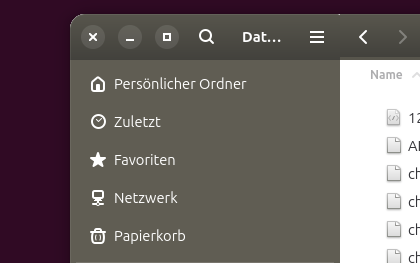
Moving from Ubuntu 22.04, 20.04, or even earlier versions to Ubuntu 26.04 can be a bit of a struggle. One thing that stands out the most is the new Libadwaita-based desktop theming. While turning Nautilus into a "tablet file manager" is a separate issue, visuals are what users notice first.
For long-time Ubuntu users who remember the single-digit version days, the distribution's signature "warm" brown and dark aesthetics are deeply familiar. Ubuntu 26.04 represents a harsh break from that past. While the operating system now forces a choice between a blinding light theme and a generic dark mode, the comfortable middle ground of the classic Ambiance theme is gone for good.
Ambiance came into being around Ubuntu 10 and on application-windows combined a dark headerbar with a light content container. And it is surprisingly hard to get this look on Ubuntu 26. But here is a first stab:
First:
Install the Ambiance theme. It comes in a package called light-themes:
sudo apt install light-themes
This will make the theme available on the system. In case you haven't done so, install GNOME-tweaks via
sudo apt install gnome-tweaks
There, you then can select the Ambiance theme for your system. Firing up nautilus after this will reveal the odd thing about themes on Ubuntu 26: what we just did will only change older applications, older meaning apps that have not yet migrated to GTK 4+ but use GTK3. Only GTK3 apps will receive the Ambiance theming.
Second:
Apply an override for your GTK4 apps. To do this you need to add a file to your local gtk config folder:
$ nano ~/.config/gtk-4.0/gtk.css
Paste this into the file:
/* Ubuntu Ambiance & Radiance Theme Override for GTK 4 / Libadwaita */

/* --- Main Window & Corner Radius (Classic: Top 4px, Bottom Square) --- */
headerbar,
.titlebar,
tabbar {
    border-top-left-radius: 4px;
    border-top-right-radius: 4px;
}

/* In GTK4/Libadwaita, the 'window' widget directly controls the corners */
window,
window.csd,
window.background {
    border-bottom-left-radius: 0px;
    border-bottom-right-radius: 0px;
}

/* Remove shadows and borders in focus/background */
headerbar:not(:backdrop),
window.csd:backdrop,
window.csd headerbar:backdrop,
.titlebar:backdrop {
    box-shadow: none;
    border-top: none;
    border-top-style: none;
}

/* --- FIX: Inner Corner Radii for Split Headerbars (Nautilus etc.) --- */

/* Flatten the inner corners when headerbars are side by side */
headerbar ~ headerbar {
    border-top-left-radius: 0px;
}

/* GTK4 replacement for the broken :has() selector:
   Targets the first headerbar when a second one follows */
headerbar:first-child:nth-last-child(2),
.navigation-sidebar headerbar {
    border-top-right-radius: 0px;
}

/* Keep modern Libadwaita split views flat */
splitview headerbar,
navigationsplitview headerbar,
overlaysplitview headerbar,
.split-view headerbar {
    border-radius: 0px;
}

/* Round only the absolute outer corners of the entire splitview window */
window .left-visible headerbar,
window navigationsplitview > box:first-child headerbar,
window overlaysplitview > box:first-child headerbar {
    border-top-left-radius: 4px;
    border-top-right-radius: 0px;
}

window .right-visible headerbar,
window navigationsplitview > box:last-child headerbar,
window overlaysplitview > box:last-child headerbar {
    border-top-left-radius: 0px;
    border-top-right-radius: 4px;
}

/* --- Headerbar (Dark) --- */
headerbar,
.titlebar {
    background-image: linear-gradient(to bottom, #57554c, #42413c);
    color: #ffffff;
}

/* Buttons in the headerbar */
headerbar button,
headerbar button:not(:disabled) {
    color: #ffffff;
}

/* Fix for light gaps/padding boxes in Nautilus & Text Editor */
widget .content-pane .collapse-spacing.vertical,
toolbarview box.collapse-spacing.vertical {
    background-color: #57554c;
}

/* --- Sidebar --- */
.navigation-sidebar {
    background-color: #605d53;
    color: #ffffff;
}

/* --- File Manager (Nautilus) Tabs --- */
tabbar tabbox {
    background-color: #42413c;
}
tabbar tab {
    color: #ffffff;
    background-color: #57554c;
}
tabbar tab:selected {
    background-color: #706d64;
    border-radius: 0px;
}
This is only a beginning but it does a good enough job of dimming these nasty glaring ligh headerbars of the default Yaru theme. Speaking of Yaru, icons are next:
Third:
Install the Humanity icon set with:
sudo apt install humanity-icon-theme
After this, you can select the icon set in gnome-tweaks. Thankfully, changing icons works across GTK3 and GTK4 so at least there we have some consistency.