
Sep 10
Ubuntu 26: thin font rendering
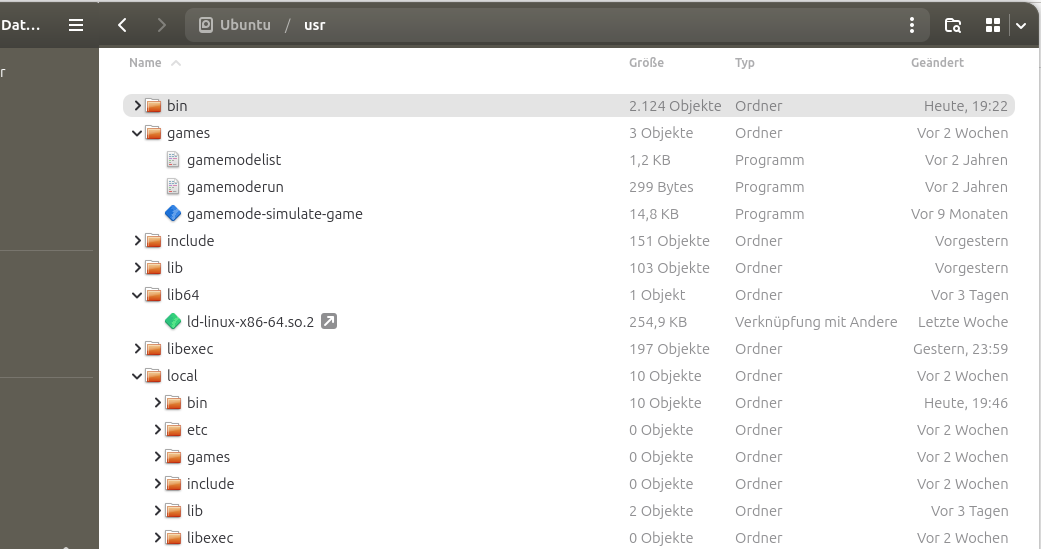
Why is it that the default (and very beautiful) custom/original "Ubuntu" font renders so thin on Ubuntu 26.04? And can we change that? Let's see.
If you haven't done so, install gnome-tweaks:
$ sudo apt install gnome-tweaks
This will give you access to the font GNOME uses. But what you'll find out is that it has no effect on most apps! Changing the font here will only change the font in older non libadwaita based apps, the GTK3 generation. Fire up nemo instead of nautilus and you'll see it yourself.
Also, not every change between Ubuntu Regular, Ubuntu Medium, Ubuntu Bold does what you expect.
For now, the best "old skool" look is to go with Ubuntu Regular but adjust "weight": set it to 500 instead of 400 and you come very close the original font weight.
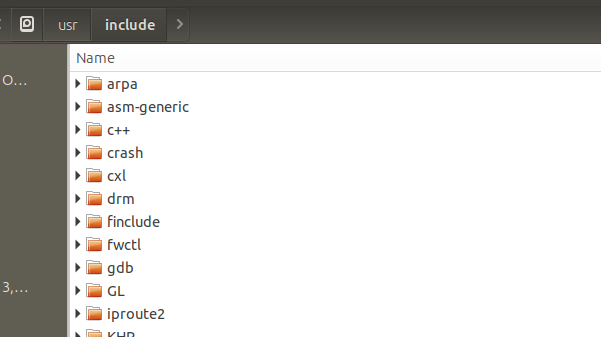
The background?
Information on the Internet is not really helpful. Some sources say Ubuntu changed the default font, and the newer one is deliberately thinner. Ubuntu 20.04 for example used the original Ubuntu typeface. it had this chunky, rounded, distinctive Ubuntu look: thicker strokes, more rounded terminals, slightly more playful proportions, noticeably heavier at normal UI sizes.
Starting with newer Ubuntu releases, Canonical seems to have moved to Ubuntu Sans, a redesigned version of the typeface. Ubuntu 24.04 somewhere described it as a “more modern slimmer version” of the Ubuntu font.
The thing is: I am not entirely true if this is official and if really a change in font happened. My hunch is that this originates in the libadwaita and Wayland rendering pipeline refactoring. Somewhere there, font rendering changed.
It is not coming from hinting or sub-pixel rendering or aliasing.
Don't commit the error of installing the fonts-ubuntu-classic package. It provides the non-variable variant of the Ubuntu fonts - not a classic looking font. You will end up with your system rendering gibberish. (CTRL-ALT-F4 to the rescue, and on raw terminal remove the package again if you went down that hole.)
So, until we find a way to change fonts in GTK4 / libadwaita apps, we're on a middleground with some apps exhibiting the old (true, and one and only) Ubuntu "look" and others, well, not.